Security basics in 5 minutes
To get the most out of heimdallX, you only need to understand four ideas. They're not hard.
1. Attack surface — the sum of all the “doors and windows” an attacker could target. That includes your website, subdomains, open ports, employee emails, even public code repositories.
2. Vulnerability / finding — the doors and windows that are unlocked or weak. For example: an expired certificate, a missing security header, or a leaked password. heimdallX collects these problems into findings.
3. Severity — a rating for how dangerous a problem is. In order — Critical High Medium Low Info — and the more severe it is, the sooner you should fix it.
4. Exploitability — “Will this vulnerability actually be used in an attack?” A high-severity issue can be hard to exploit in practice, and the reverse happens too. heimdallX uses signals like EPSS and CISA KEV to surface “what's truly dangerous.”
Run your first scan in 3 steps
No credit card required. Sign in with a Google or Apple account and you're ready to go.
1. Sign in
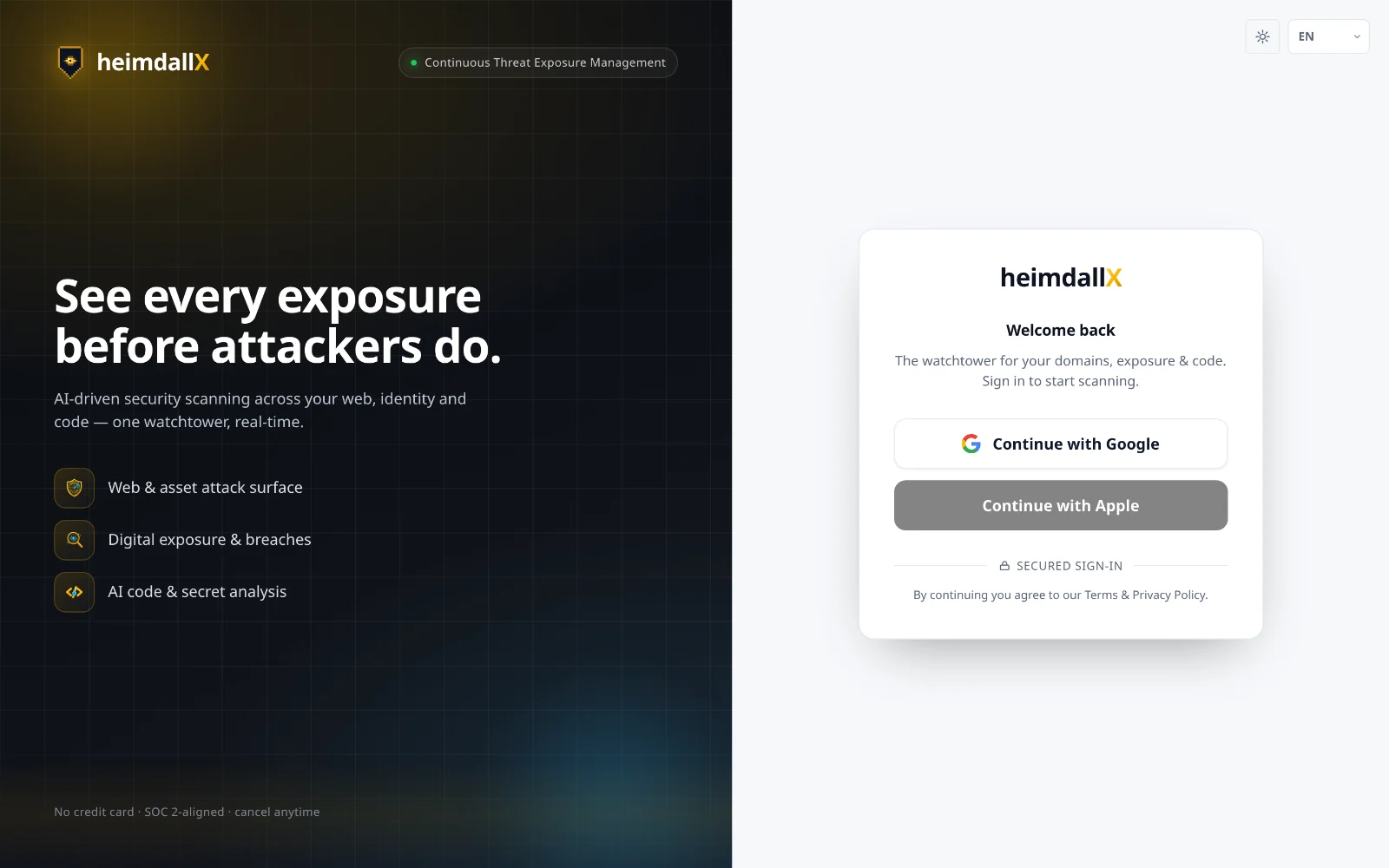
Go to heimdallx.ai/app and click Continue with Google or Continue with Apple. Your workspace and project are created automatically, so there's nothing to set up.
2. Run a scan
Click + New scan at the top, pick a module (Web & assets / Digital exposure / Code security / Cloud), enter the target domain, email, or repository, then click Run scan.
3. See the results
Usually within a few minutes, the Overview screen fills in with your security posture score and findings. Progress updates in real time.
Workspaces & projects
heimdallX organizes your assets in two levels — a team-wide workspace, and projects inside it.
A workspace is the top-level space for a team or organization; your plan and teammates are tied to it. A project is like a folder inside it that separates assets, scans, and findings (for example: “Production site,” “Staging,” “Customer A”).
You can switch or create workspaces and projects anytime from the workspace / project switcher at the top left. When you sign in, a default workspace and a “Default project” are already set up, so you can jump straight into scanning.
Overview — your security posture at a glance
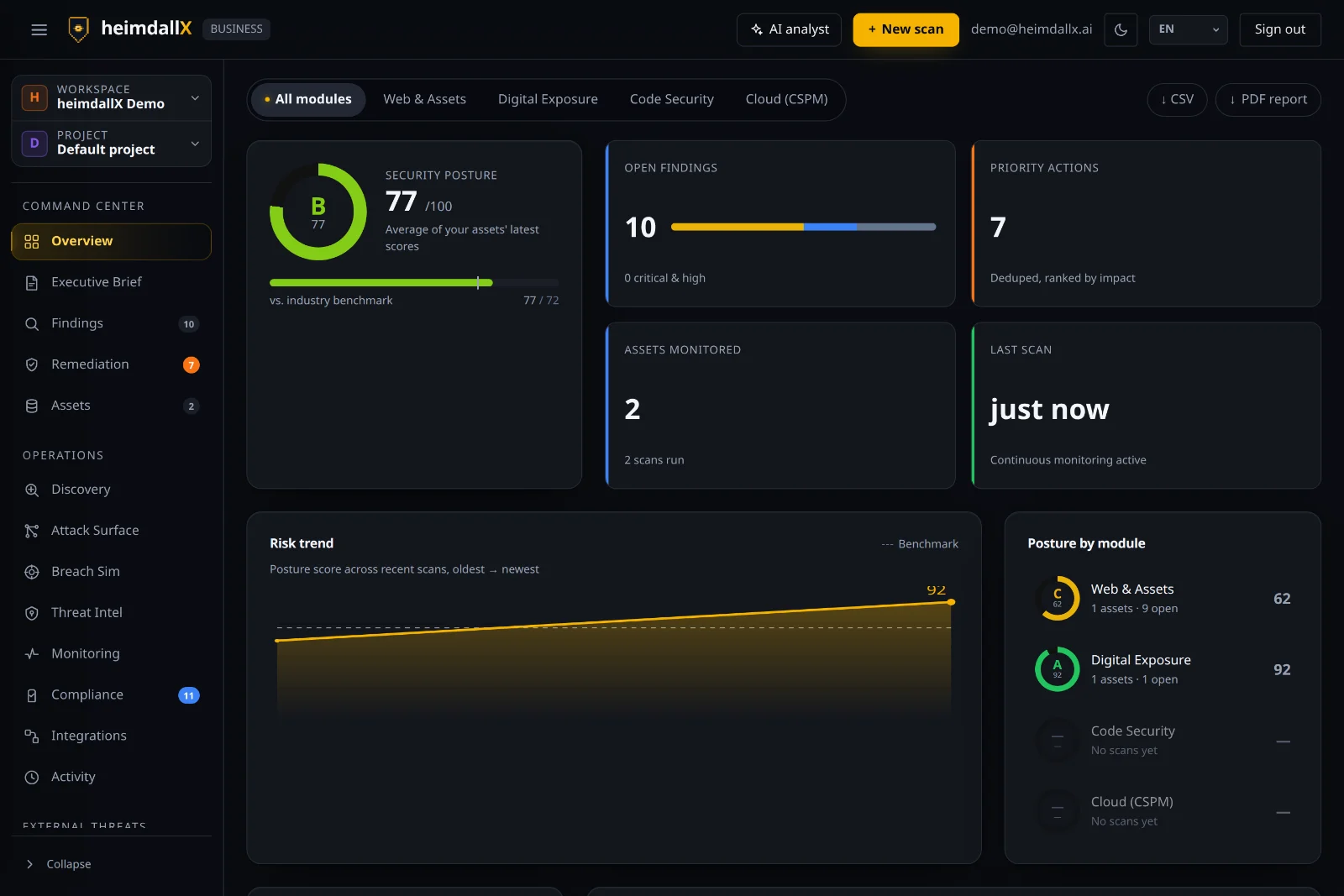
The first screen you land on after signing in. Every scan result is distilled into a single score and a priority list.
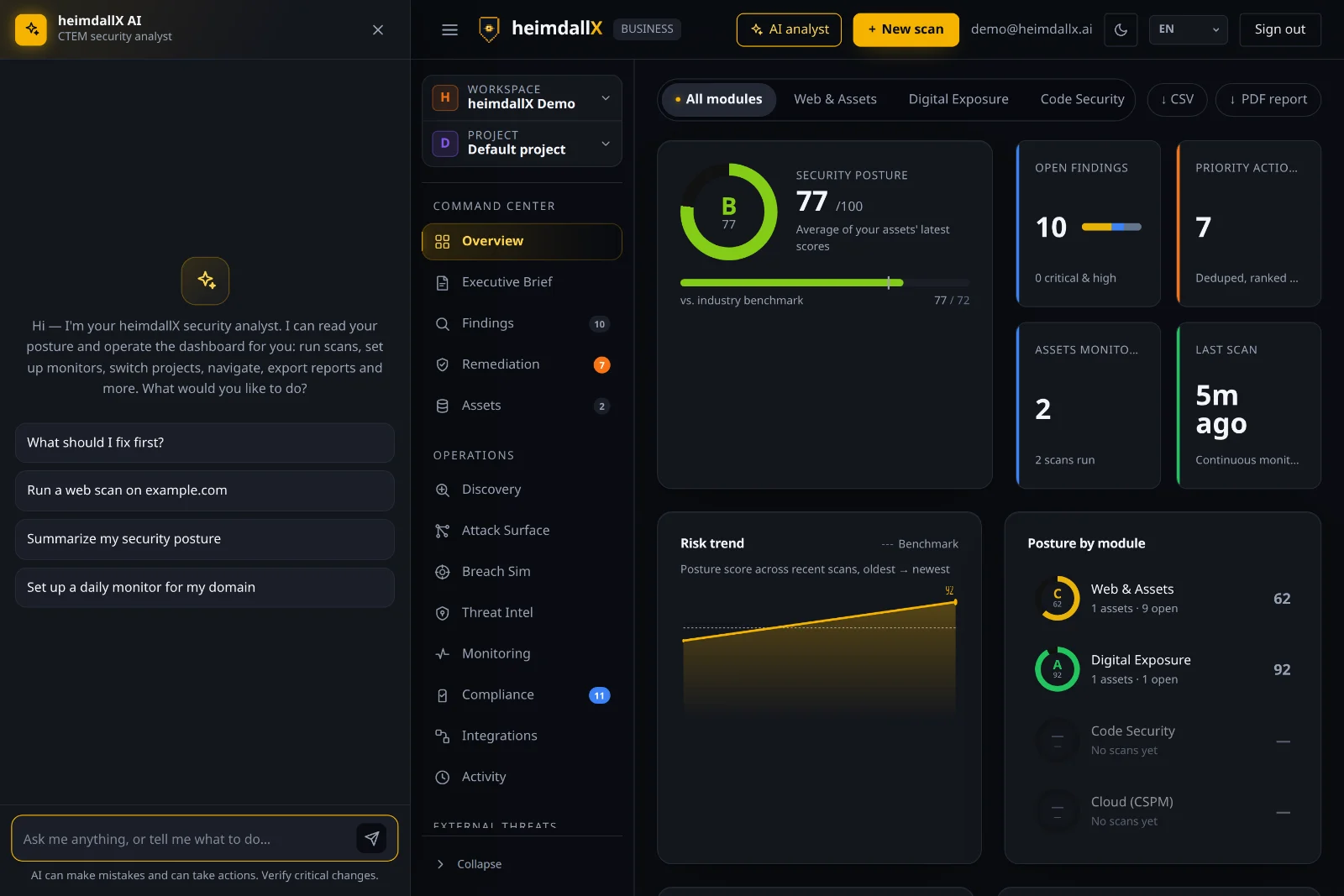
Your security posture score (0–100, graded A–F) is the average of your assets' latest scores, shown against an industry benchmark.
On the right, posture by module shows the score for each of web, exposure, code, and cloud, while risk trend shows how your posture changes as you run more scans. The cards up top show open findings (the count of critical and high), top fixes, the number of monitored assets, and your last scan time; the number badges in the left sidebar tell you how many items have piled up on each screen.
Run a scan
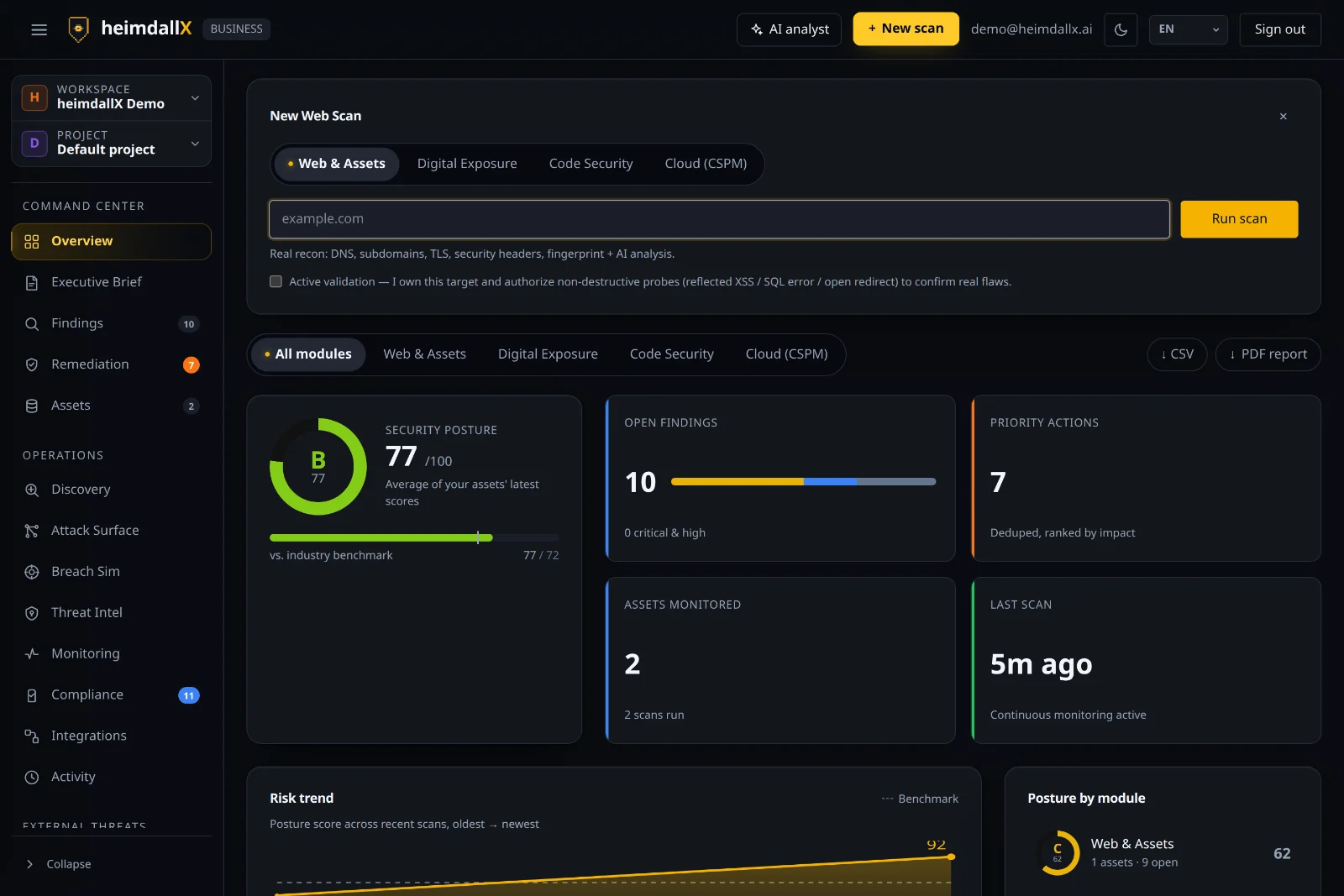
Click + New scan and the runner appears, where you choose the module and target.
A scan is how heimdallX actually inspects a target to find problems. Just choose the module (what to check) and the target (where to check) — the rest is automatic.
Scan modules in detail — what does each find?
Four modules check for risk from different angles. Here's what each one actually looks at, spelled out.
Web & assets
Enter a domain and heimdallX checks and analyzes your DNS and subdomains (your site's address structure), TLS certificate (the padlock icon), security headers (HSTS, CSP, and more), technology fingerprint (which server and framework you run), open ports, and whether anything has leaked — all with AI.
Free and upDigital exposure
Enter an email, username, or domain and heimdallX checks for accounts caught in past breaches (HIBP), your email anti-spoofing setup (SPF/DMARC), and exposed public profiles. You'll learn “whether your information has already leaked.”
Pro and upCode security
Point it at a GitHub repository and it audits for secrets accidentally committed (API keys, passwords), sensitive files, and vulnerabilities in the source code itself (SAST static analysis).
BusinessCloud (CSPM)
Inspects your cloud settings to find misconfigurations (for example, a publicly exposed storage bucket) and risky permission combinations (toxic combinations).
BusinessManaging assets
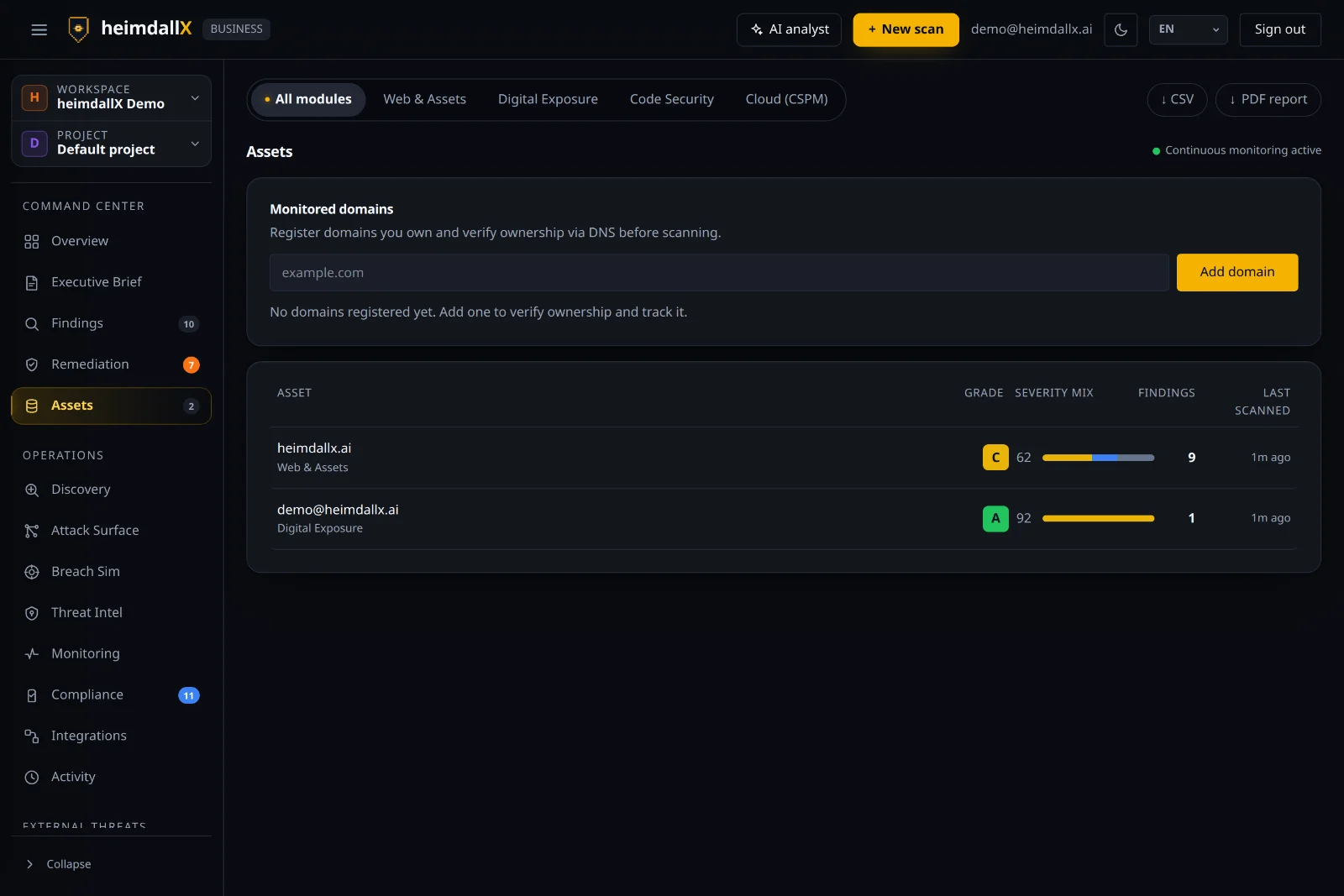
Every domain, email, and repository you scan is registered as an asset, with its score and history tracked.
An asset is each individual thing you want to protect (a site, an email, a repository). Each asset shows its latest grade, its number of open findings, and its last scan time; click one to see just that asset's scan history and findings — handy for focusing on a specific site or account.
Proving an asset is yours
Passive scanning needs no proof. Anything that touches the target does — and this is how you give it.
A passive scan reads what is already public: certificates, DNS, headers, third-party records. You can run one against any domain you like, because we are not doing anything to it that a browser doesn't.
An active scan is different. It sends probes — parameter payloads, a port sweep — and that is only acceptable against something you own. So the “actively probe this target” checkbox requires the target to be a verified asset in your workspace, and a scan that asks for active probing without one is refused with an explanation rather than quietly downgraded.
How to verify (about two minutes).
- Open Assets, add the domain if it isn't there, and press Verify.
- We show you a token. Publish it as a DNS TXT record — either on the domain itself or on
_heimdallx.<your-domain>— with the token as the value. - Wait for DNS to propagate (usually seconds, occasionally up to an hour on a slow provider) and press Verify again.
Verification is per asset and does not expire, so you do this once per domain. You may delete the TXT record afterwards, but leaving it in place means re-verification is instant if the asset is ever recreated. Subdomains of a verified domain are covered.
If it doesn't verify: check the record from outside your network (dig TXT _heimdallx.example.com), confirm your provider hasn't wrapped the value in extra quotes, and remember that a CDN or registrar's “DNS proxy” can cache the old answer for its TTL.
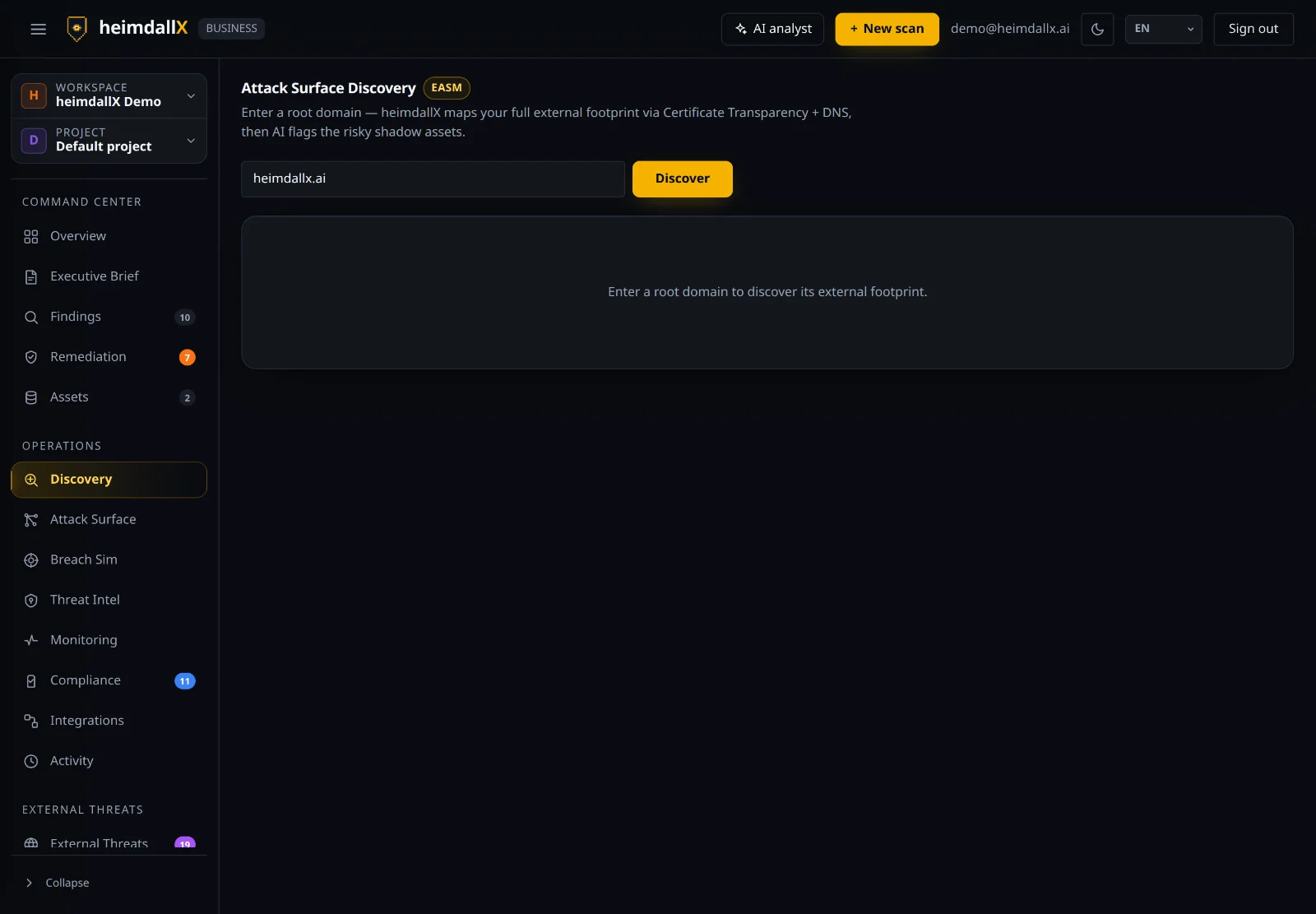
Attack Surface Discovery (EASM) — find assets you forgot
Enter a single root domain and heimdallX automatically finds your scattered external assets (subdomains and more).
EASM (External Attack Surface Management) discovers “assets you didn't even know you had.” Enter a domain and it digs through Certificate Transparency (public certificate records) and DNS to map out subdomains and hidden assets, with AI flagging risky shadow assets (like an abandoned test server).
Reading findings
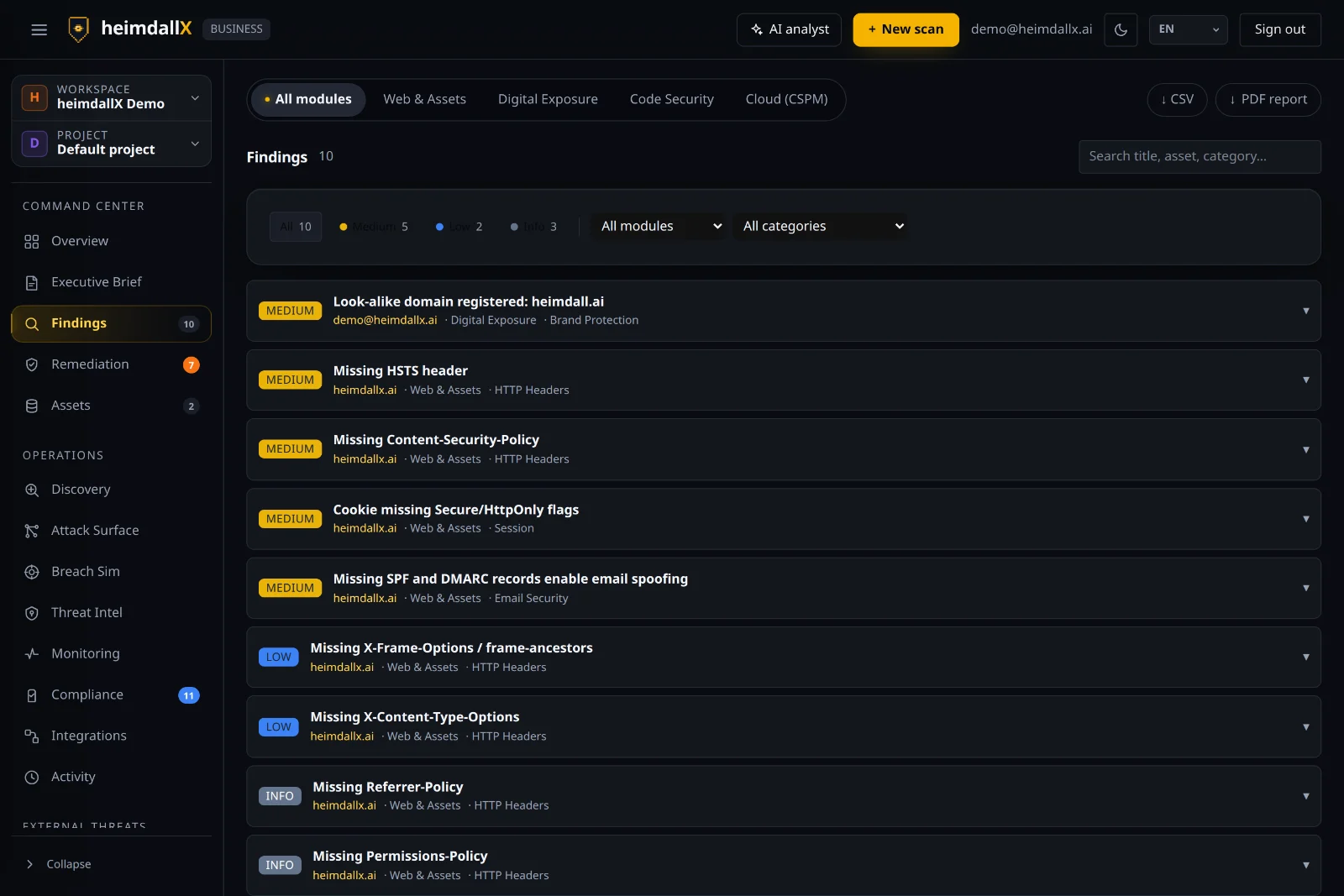
Every finding is classified by severity, module, and category, and you can search and filter them.
Each finding shows its target asset, module, and category (HTTP headers, email security, sessions, brand protection, and so on). Expand a finding and you'll see its evidence, impact, how to fix it, and CWE — plus exploitability signals like EPSS and CISA KEV.
Remediation — what to fix first
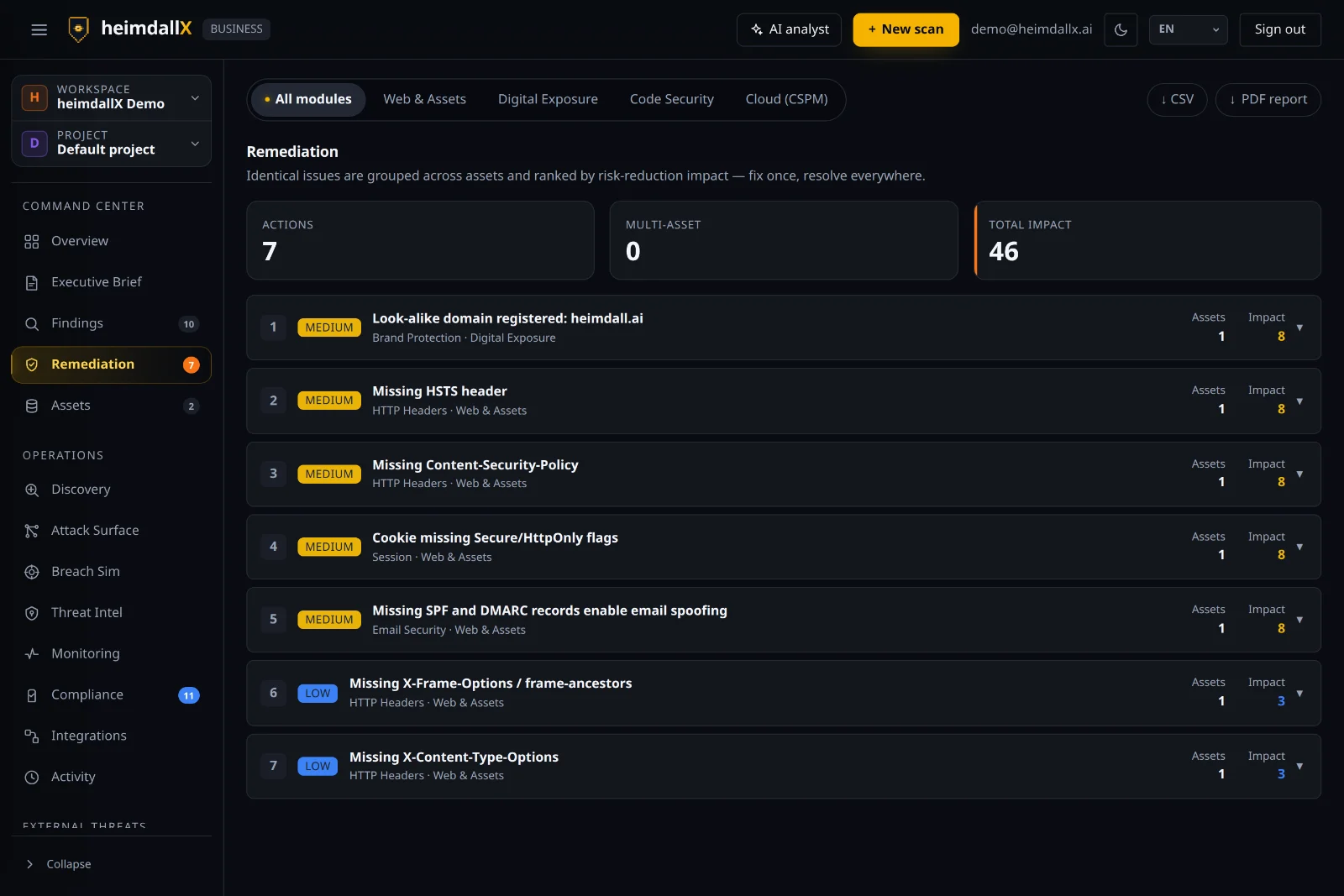
The same issue across multiple assets is grouped into one and sorted by how much risk you remove.
It gives you a priority queue so that “fixing once resolves it everywhere.” Each item shows how many assets it affects (multi-asset) and its expected impact, so you can knock down the biggest risks first when time is limited.
Attack surface — the exposure map
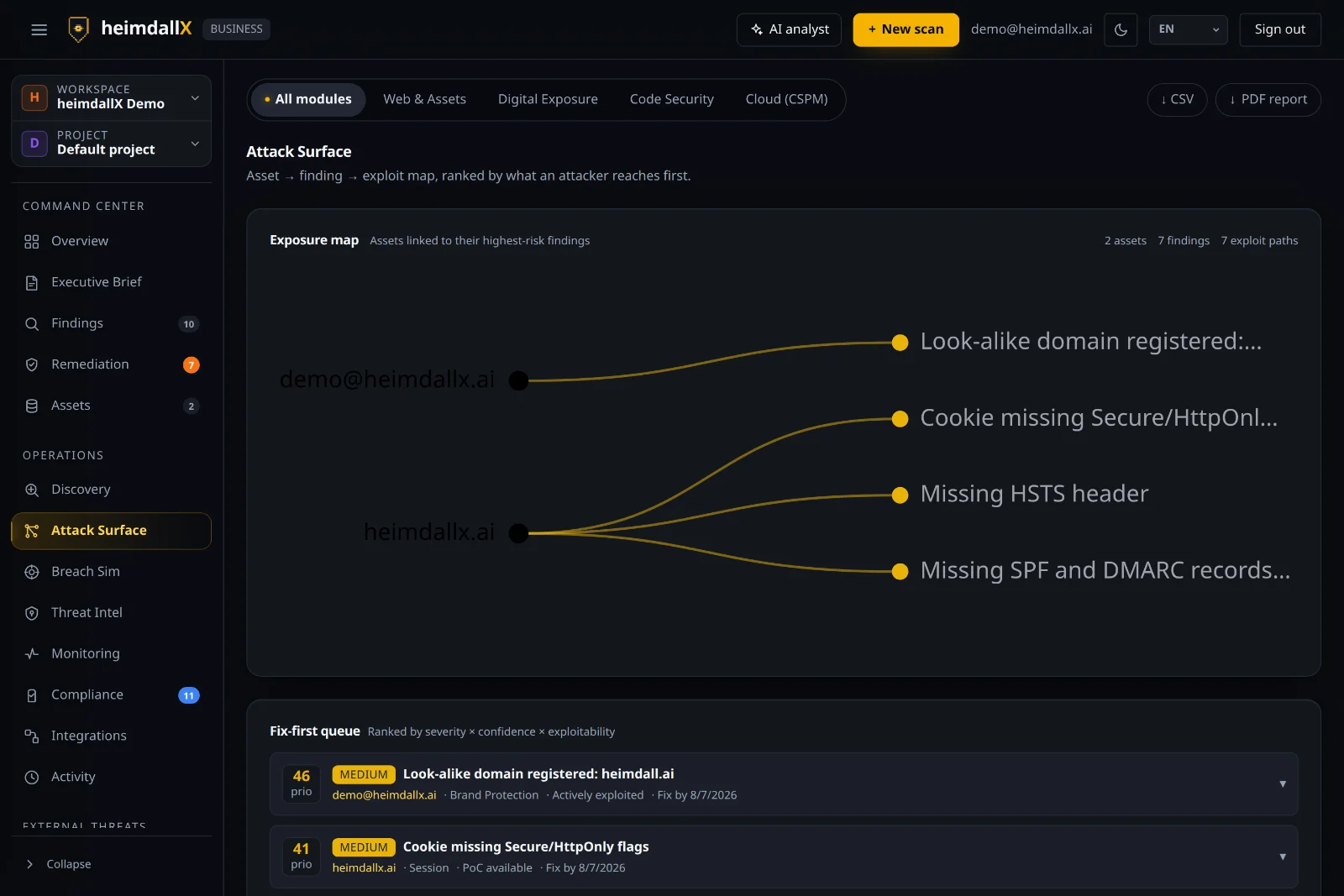
Visualizes the path from asset → finding → exploit, in the order an attacker reaches them first.
The exposure map connects each asset to its most dangerous finding with a line, so you can see at a glance which spots are “entry points.” The fix-first queue below prioritizes by severity × confidence × exploitability, and also shows whether a “PoC exists / actively exploited” and a recommended fix-by deadline. A PoC (Proof of Concept) means “example code that actually breaks this vulnerability is already public,” which is a danger sign.
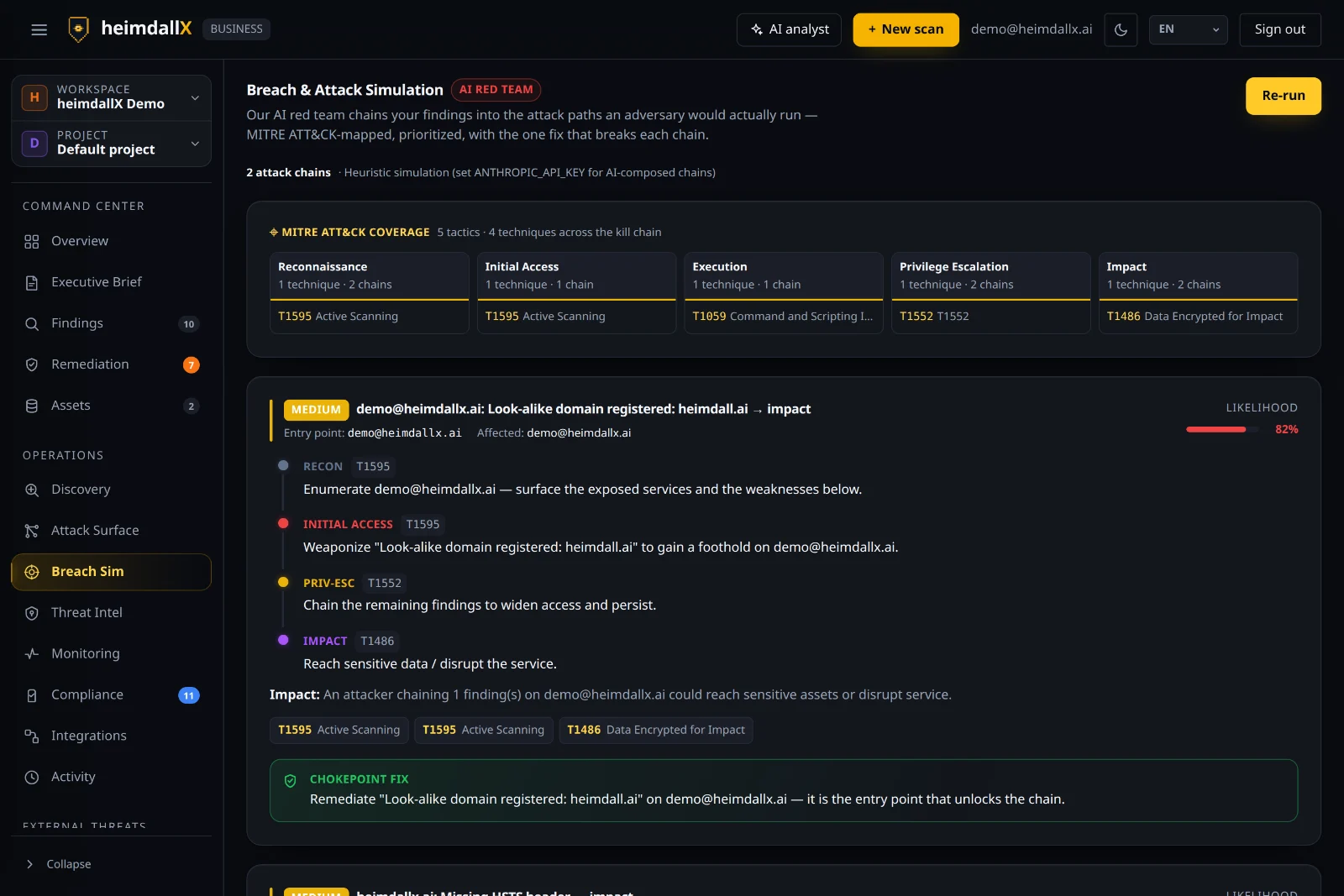
Breach & attack simulation
An AI red team weaves your findings into the attack path (kill chain) a real attacker would follow.
Click Run simulation and your findings are mapped to MITRE ATT&CK tactics and techniques (reconnaissance → initial access → privilege escalation → impact), and each attack chain's likelihood of success is calculated.
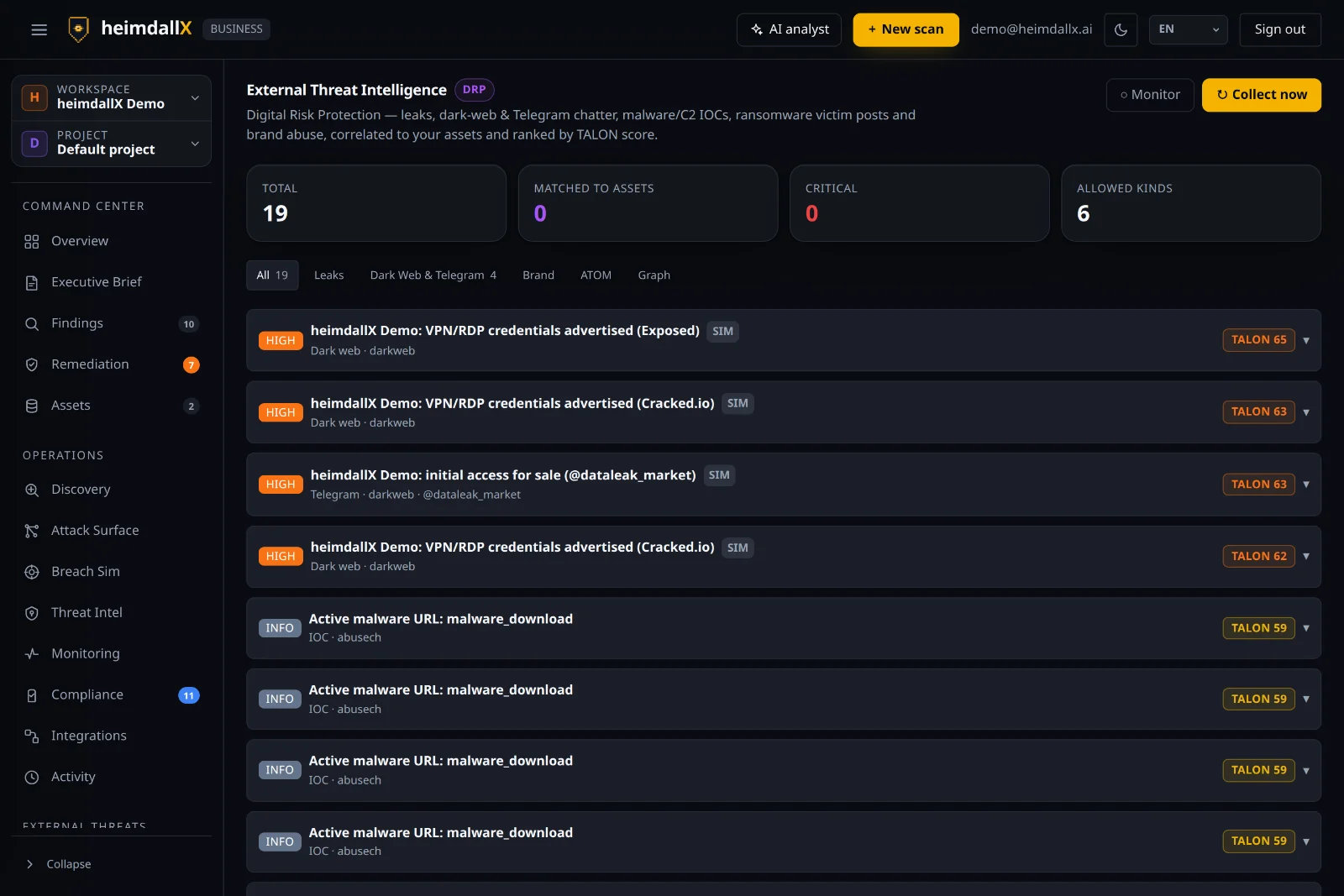
External threats (DRP) — watching the outside world too
Digital Risk Protection — correlates leaks, dark web/Telegram chatter, malware IOCs, ransomware victim posts, and brand impersonation with your assets, then ranks them by TALON score.
If everything so far has been about “inspecting your own inside,” external threats watch “how your story is circulating out there.”
Click Collect now and it gathers real feeds like ransomware.live, abuse.ch, OpenPhish, and HIBP along with dark web/Telegram chatter, then connects them to your domains and emails. Results are split into Leaks / Dark web & Telegram / Brand / ATOM / Graph tabs, and turning on Monitor collects them automatically on a schedule.
Threat Intel — what's being exploited right now
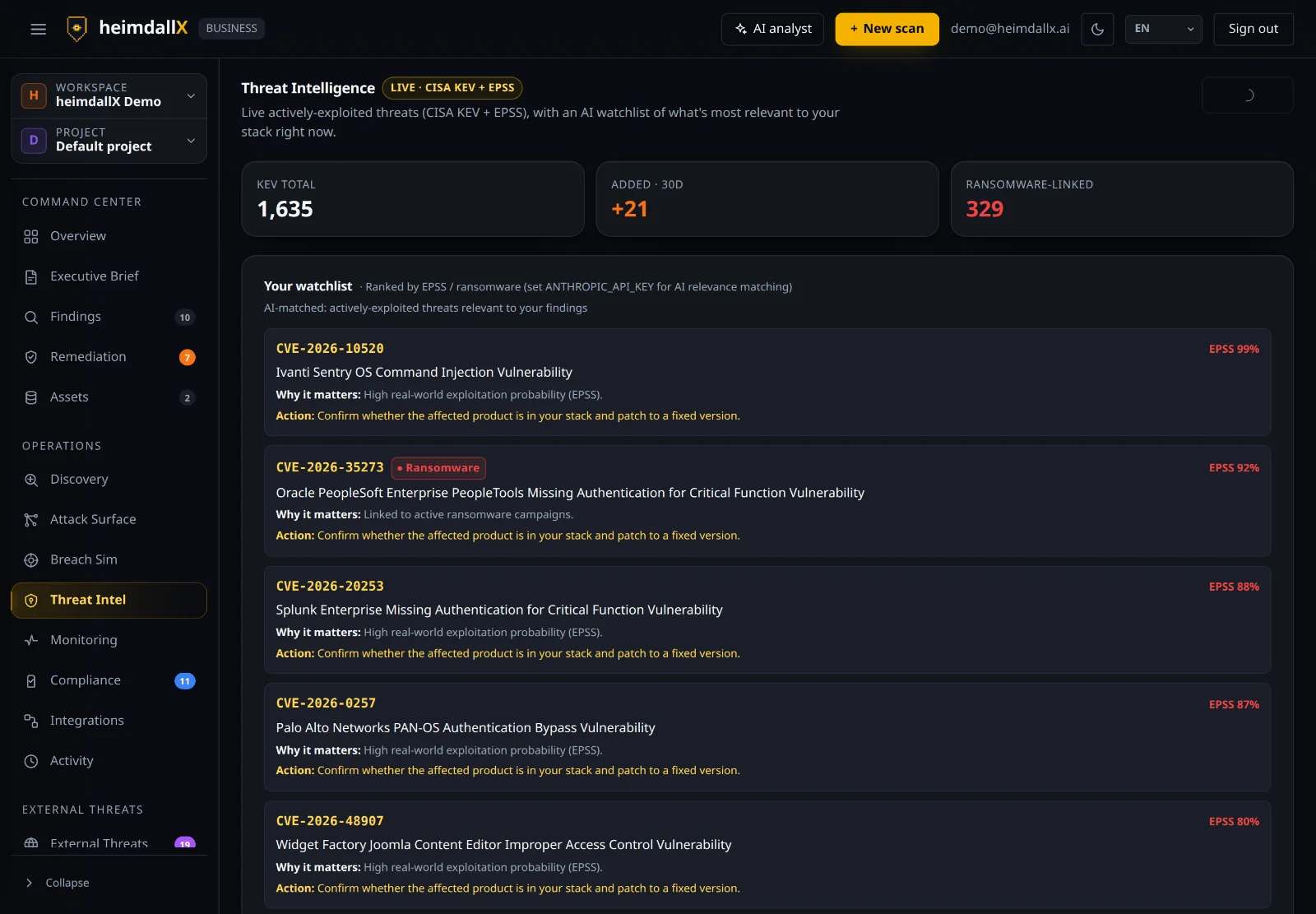
Shows the vulnerabilities being actively exploited around the world (CISA KEV + EPSS) live, with AI picking out the ones relevant to your environment.
A CVE is “a unique ID assigned to each publicly disclosed vulnerability (e.g., CVE-2026-10520).” Threat Intel sorts the CVEs being actively exploited right now by EPSS probability and ransomware association, and attaches “why it matters” and “what to do” to each one.
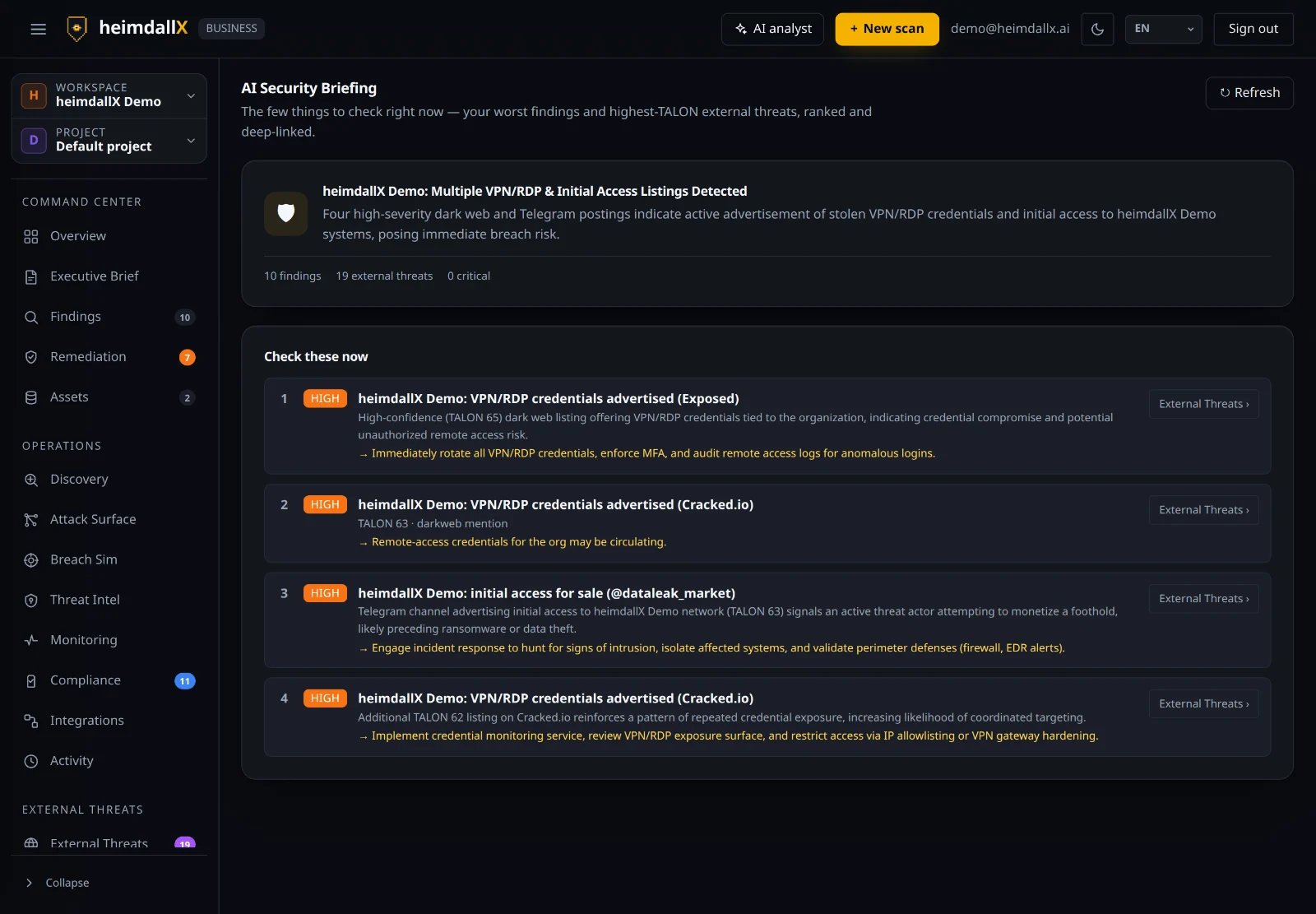
AI Briefing — what to check right now
AI sums up your most severe findings and top TALON external threats into a “check these now” list.
When there are so many screens you don't know where to start, open the AI Briefing and it picks out “the few things you really need to handle today,” with a ranking, recommended actions, and deep links to the relevant screens. Five minutes each morning is enough to grasp your organization's risk status.
Continuous monitoring & alerts
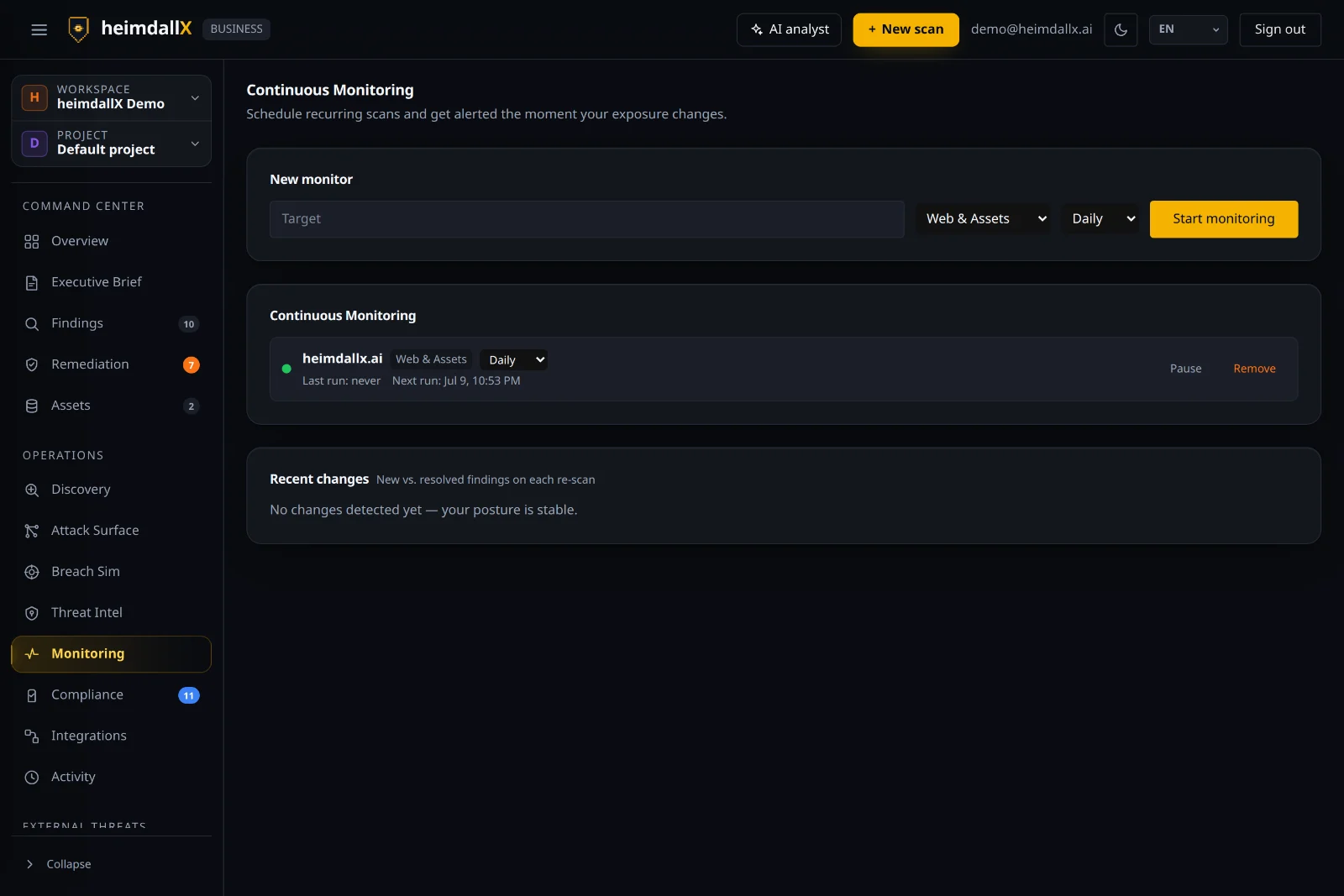
Don't stop at a single scan — re-scan your assets daily or weekly so you never miss a change.
Set a target and a cadence (e.g., daily) under New monitor and re-scans are scheduled automatically. The recent changes area compares new and resolved findings after each re-scan to tell you whether your posture is improving or getting worse, and you can get alerts when a new risk is detected.
Incidents — the SOC console
Where a detection becomes a case somebody owns, with an AI first-pass verdict already attached.
A finding says something is wrong with an asset. An incident says something is happening: repeated failed logins, a new critical on a monitored target, a detection from the telemetry you forward to us. Alerts about the same thing on the same asset fold into one case instead of arriving as twenty messages, and a case that has already paged you does not page again for an hour unless it escalates.
Each case carries a status (open → acknowledged → in progress → resolved), an owner, an SLA clock for acknowledgement and for resolution, and a timeline of everything that touched it. High and critical cases are automatically submitted for advisory first-pass triage — classification, confidence, and a recommended next step. A model verdict is labelled separately from a deterministic rule-based fallback. Provider or accounting failures can delay or prevent a verdict; the incident and its security page do not depend on it.
The console updates live — a case raised while you are looking at the list appears without a refresh. To feed it with your own logs, see log forwarding.
Roles. Viewers can read every case and change none: triage, status changes, assignment and suppression rules all require write permission, so a read-only account cannot quietly silence a detection.
Compliance evidence
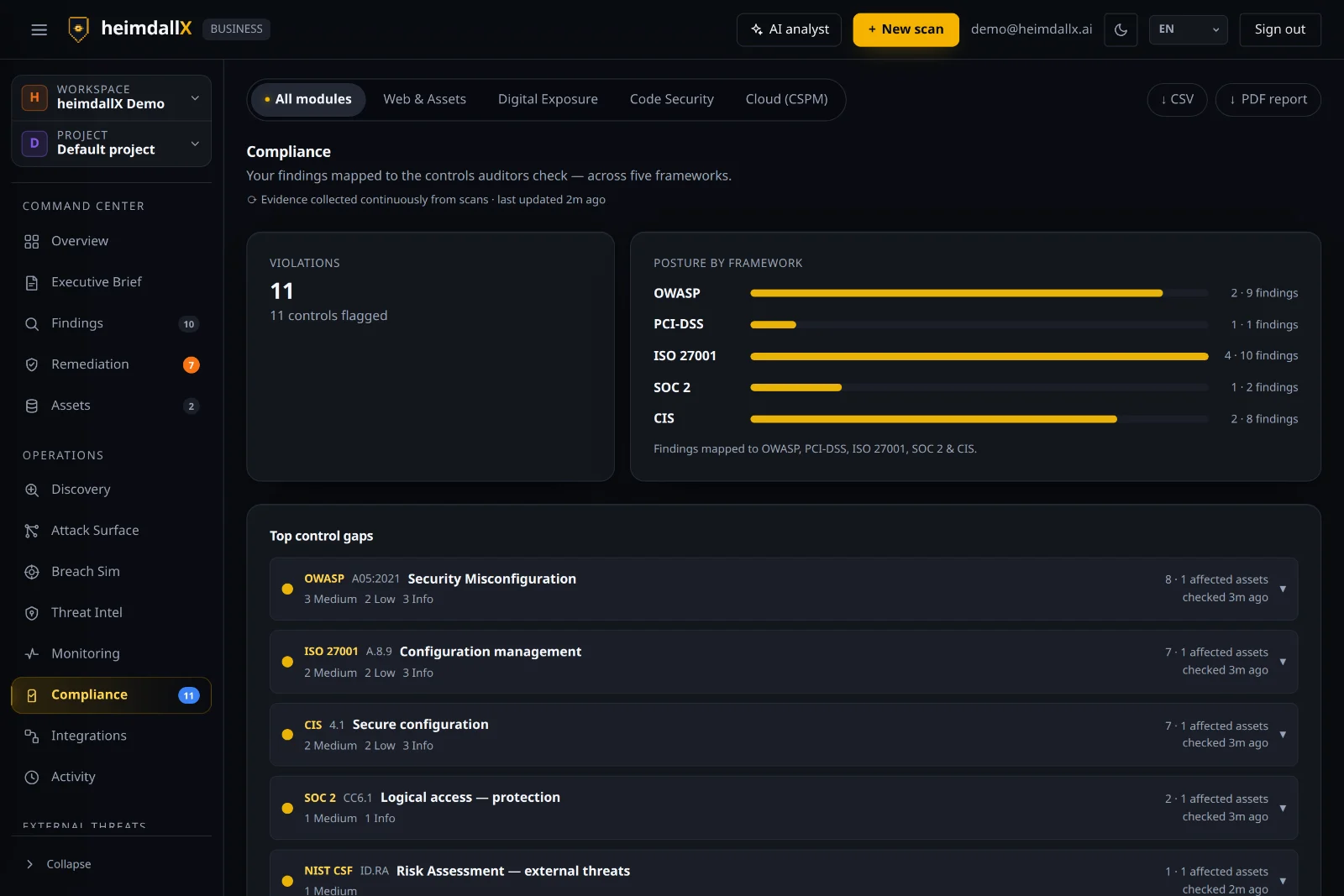
Automatically maps your findings to the controls an auditor checks.
Evidence is collected continuously from your scans and mapped to five frameworks — OWASP, PCI-DSS, ISO 27001, SOC 2, and CIS. You can immediately see the number of violations per framework and your key control gaps, which dramatically cuts audit-prep time.
Executive brief & reports
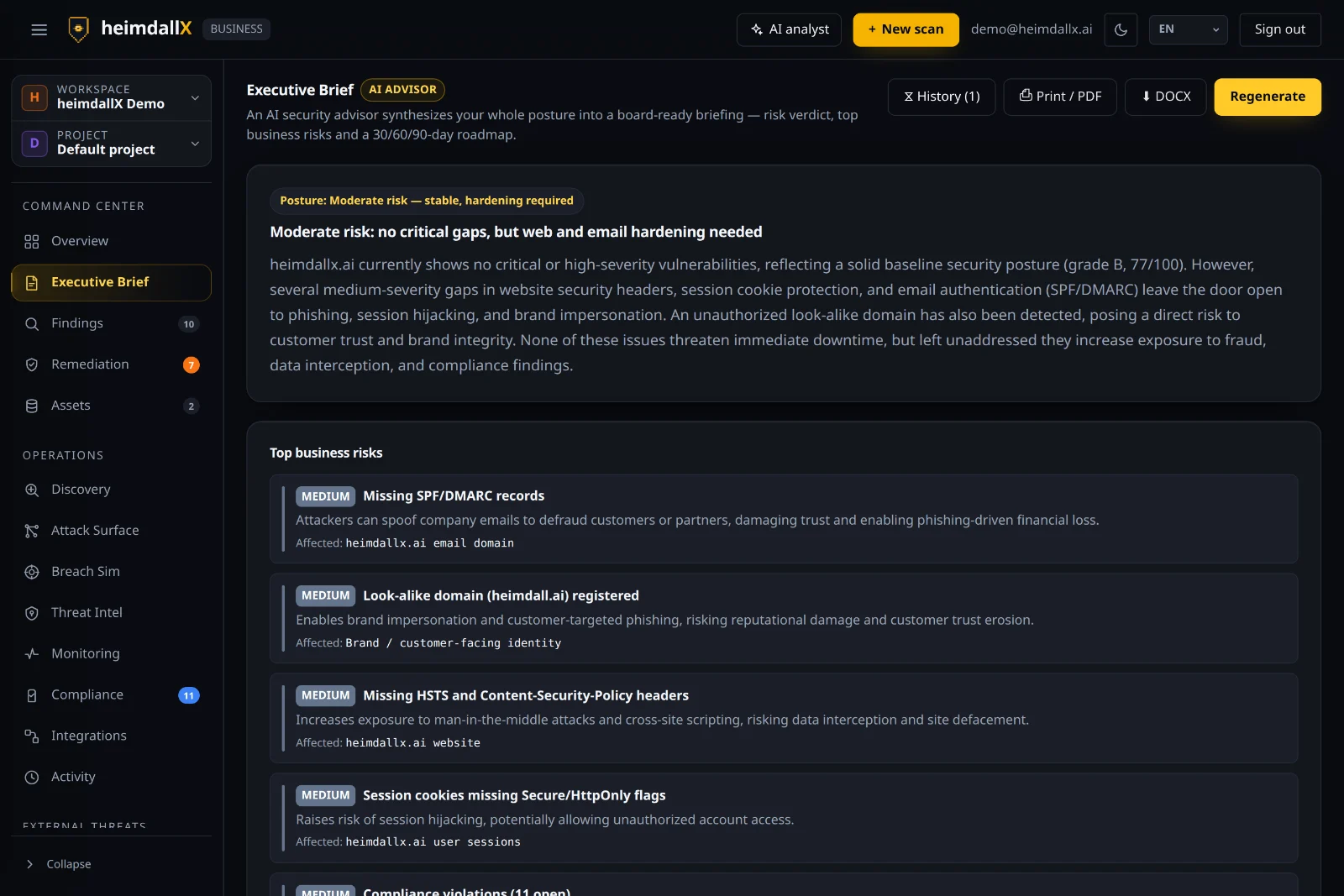
An AI security advisor synthesizes your overall posture into a board-ready briefing.
Click Generate brief and you get a one-page summary with a risk verdict (e.g., “Moderate risk — improvement needed”), your key business risks, and a 30/60/90-day roadmap. It's written in the language executives understand — “revenue, trust, regulation” — rather than technical jargon, so you can drop it straight into a report, and you can export it as Print/PDF or DOCX.
Integrations & alerts
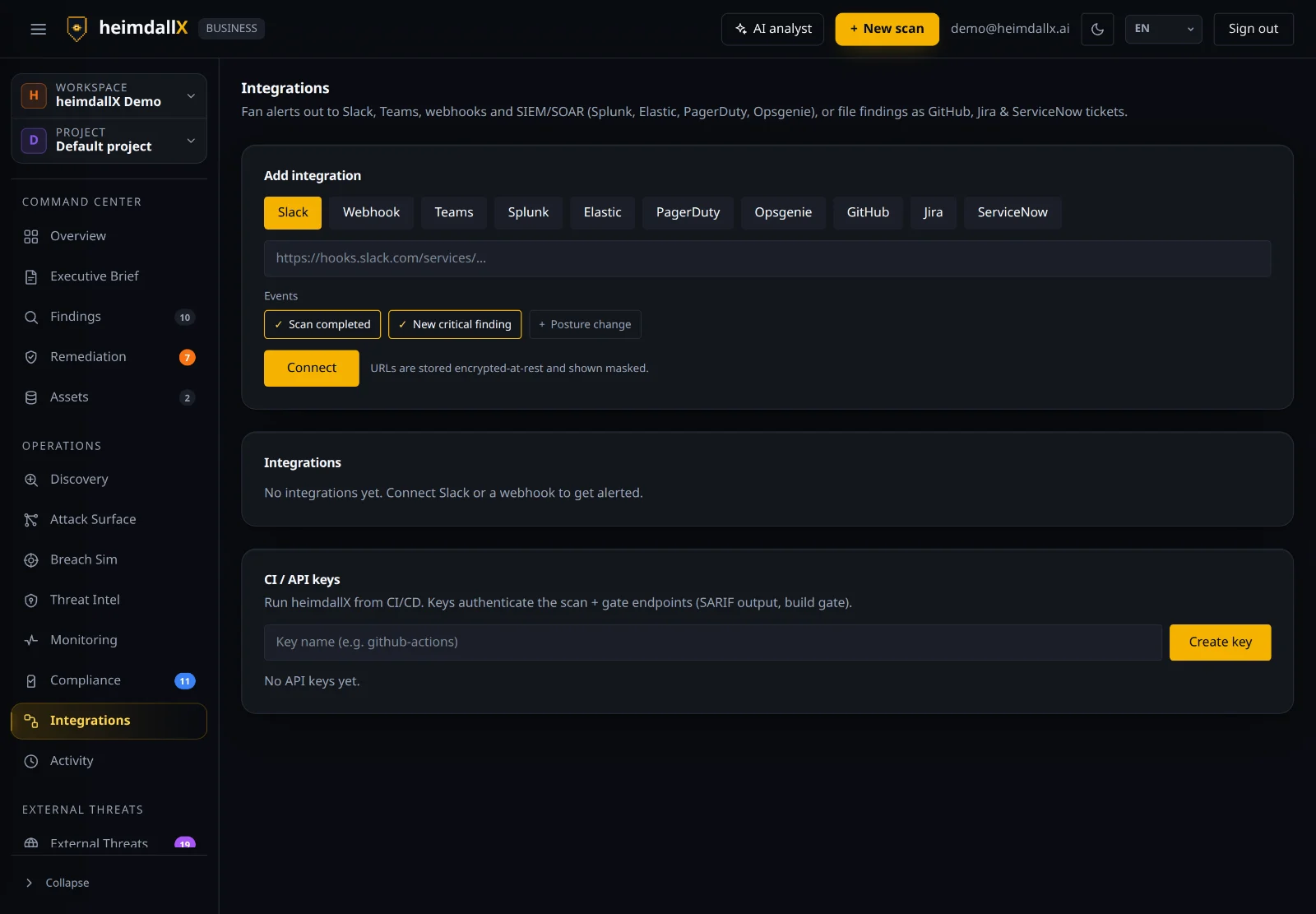
Send scan completions, new critical findings, and posture changes to Slack, Teams, or a webhook, or to SIEM/SOAR, and turn findings into Jira, GitHub, or ServiceNow tickets.
You can't stare at a dashboard all day, so this feature sends you an alert through the tools you already use whenever something important happens. Add an integration and choose which events to alert on (scan complete / new critical finding / posture change).
Activity log
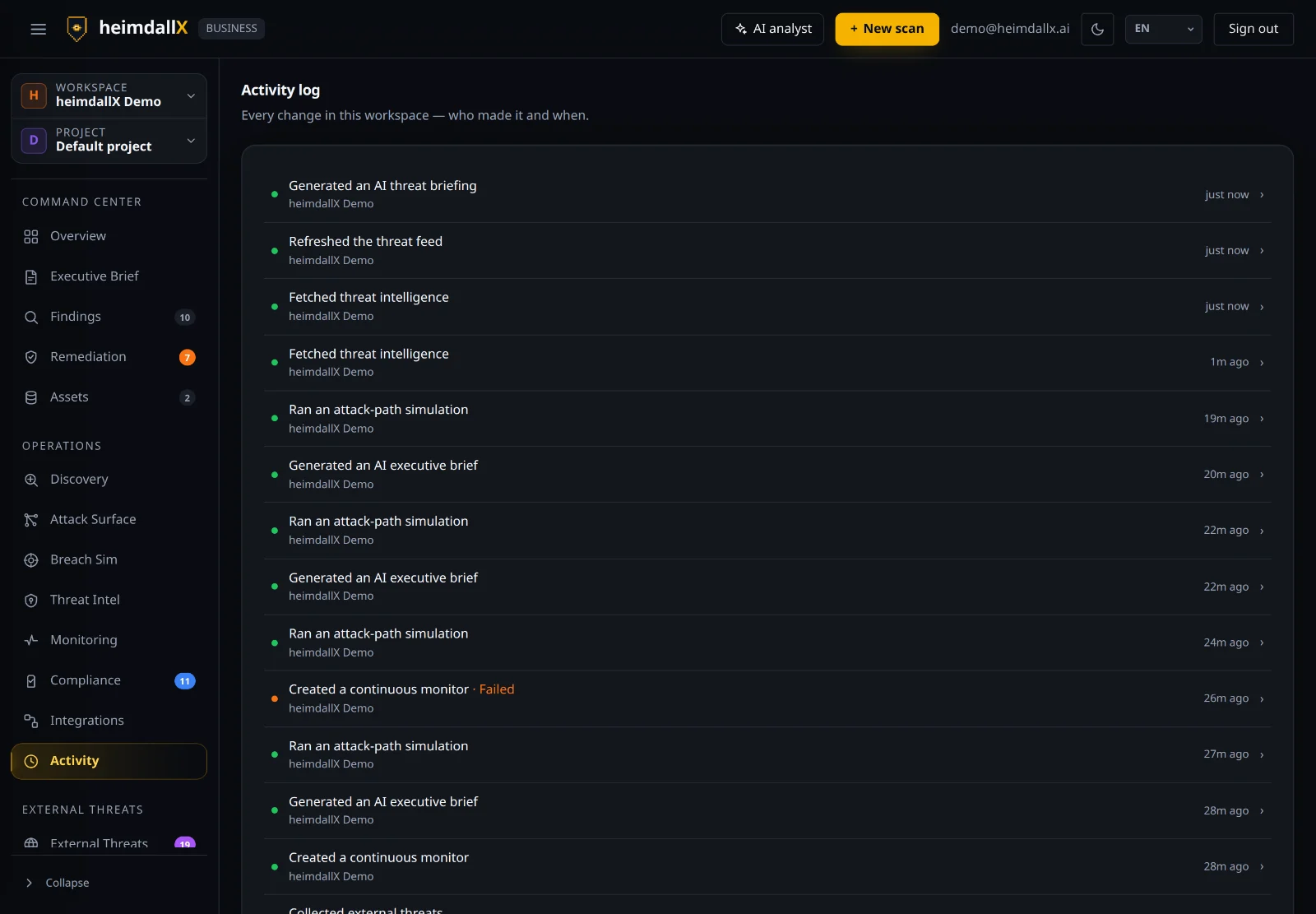
Records every change made in this workspace — who did it and when.
Every action — running a scan, generating a brief, adding a monitor — is kept in chronological order. Great for tracking “when did what happen” when working as a team, or as evidence for an audit.
Team & roles
Invite teammates to your workspace and set their access with roles.
Owner
Full control, including plan, teammates, and deletion. The person who created the workspace.
Admin
Manages settings and members, and runs all scans and remediation.
Analyst
Handles day-to-day work: running scans, working findings and remediation.
Viewer
Read-only access to results and reports.
Single sign-on & directory sync
SAML 2.0 and SCIM 2.0, on every plan including the free one.
SSO is not a premium feature here. Charging for it pushes the organisations with the most users towards shared passwords, which is the opposite of what this product is for — so SAML sign-in and SCIM provisioning are available on every plan.
Setting up SAML. In your workspace settings, enable SSO and choose a slug (a short name for your organisation). That gives you three URLs for your identity provider — Okta, Entra ID, Google Workspace, Keycloak, anything that speaks SAML 2.0:
- Metadata —
/auth/saml/<slug>/metadata, which most providers can import in one step - Sign-in start —
/auth/saml/<slug>/start - ACS / callback —
/auth/saml/<slug>/callback
The assertion needs to carry an email address; that is what identifies the person. A user who signs in through your IdP joins the workspace with the default role you configured, and the identity is bound to your workspace — an assertion from one organisation's IdP cannot land in another's tenant.
Directory sync (SCIM). Mint a SCIM token in the same settings screen and point your provider at /scim/v2/Users. Creating a user in your directory adds them here; deactivating them there removes their access here. That second half is the part worth having: the usual way an ex-employee keeps access to a security console is that somebody forgot to click Remove.
Keys, CI scans and log forwarding
Two kinds of key, one machine-readable spec, and a build gate that can fail a pull request.
Everything a machine can do here is authenticated with a workspace API key, sent as Authorization: Bearer <key>. Keys are shown once when you create them — only a hash is stored — and the prefix tells you what a key is for:
hxci_…— CI keys. Start a scan from your pipeline (POST /ci/scan) and read the result (GET /ci/scan/<id>). The result includes a SARIF document, which GitHub, GitLab and most IDEs render as inline annotations, plus a gate verdict you can turn into an exit code. The gate is configurable per call — fail only on verified findings, exclude a verification tier, set a severity floor — so you can start advisory and tighten later.hxin_…— ingest keys. Post events from your SIEM, an agent or a log shipper toPOST /ingest/events. They are normalised, run through detection rules and surface as incidents.
The full contract — paths, fields, error codes — is published as OpenAPI 3.1 at /openapi.json, so you can generate a client rather than copying a curl snippet. It deliberately describes only these key-authenticated endpoints: the console's own session-authenticated routes are not a public API and are free to change.
Lost a key? Revoke it in the same screen and issue a new one; revocation takes effect on the next request. A key never grants more than the workspace it was minted in.
AI analyst — the AI that does it for you
Click AI analyst at the top and a copilot appears that reads your posture and operates the dashboard on your behalf.
Give it natural-language instructions like “What should I fix first?”, “Run a web scan on example.com,” “Summarize my security posture,” or “Set up a daily monitor for my domain,” and it will run scans, set up monitors, switch projects, and even export reports. It's an especially reassuring helper for beginners who find security jargon unfamiliar. That said, AI can make mistakes, so double-check important changes.
What each plan includes
The modules available to you depend on your plan. For the latest pricing, see heimdallx.ai.
Free
Individuals · just getting started
- Web & asset scans
- Security posture score & findings
- Digital exposure
- Code security · Cloud
Pro
Prosumers · small teams
- Web & asset scans
- Digital exposure added
- External threats (DRP) · always-on monitoring
- Code security · Cloud
Business
Teams · organizations that need compliance
- Everything in Pro
- Code security · Cloud (CSPM)
- Compliance evidence · executive reporting
- Up to 1,000 scans/month · 100 assets
Glossary — plain-language definitions
New to security? Start here. We've gathered the terms from this guide and the app and explained them in plain language.
- DNS
- The “internet phone book” that turns a domain (the human-readable address, example.com) into the real server address.
- Subdomain
- A sub-address in front of the main domain (blog.example.com, mail.example.com, and so on). Forgotten subdomains often become an attack route.
- TLS / SSL certificate
- The padlock in your browser's address bar. It encrypts the connection and proves “this really is that site.” Expiry and misconfiguration are common problems.
- Port
- A server's “entrance number.” An unnecessary open port becomes an attack route.
- HTTP security headers
- Settings a server uses to tell the browser “behave safely, like this.” HSTS, CSP, and the others below are the main ones.
- HSTS
- A header that forces “always connect to this site over encryption (HTTPS).” Without it, connections are easier to intercept in the middle.
- CSP
- Content-Security-Policy. A header that limits which scripts a page can run, blocking malicious code injection (XSS).
- Fingerprint
- Figuring out which server, framework, and version a site runs. The step where an attacker works out “which key will fit.”
- Vulnerability / finding
- A weakness that could be used in an attack. heimdallX collects these as findings.
- Severity
- A risk grade for a problem (critical, high, medium, low, info). The higher it is, the bigger the potential damage.
- CVE
- A unique ID assigned to each publicly disclosed vulnerability (e.g., CVE-2026-10520). A globally shared identifier.
- CVSS
- The standard scoring system that rates a vulnerability's severity from 0 to 10.
- EPSS
- Exploit Prediction Scoring System. A score predicting the probability (%) that a vulnerability will actually be exploited.
- CISA KEV
- A list, maintained by the U.S. agency CISA, of “vulnerabilities already being exploited in the wild.” If it's on here, treat it as top priority.
- PoC
- Proof of Concept. It means example code or a method to actually break a vulnerability is public — a danger sign.
- CWE
- A “type classification” for vulnerabilities (e.g., SQL injection, broken authentication). Helps you understand similar issues as a group.
- SAST
- Static Application Security Testing. A code audit that scans source code without running it to find vulnerabilities.
- XSS
- Cross-site scripting. An attack that plants malicious script in a web page to target its visitors.
- Attack surface
- The sum of all entry points an attacker could target (sites, subdomains, ports, emails, code, and more).
- EASM
- External Attack Surface Management. Automatically finding and managing even the external assets you didn't know you had.
- Red team
- A team (or activity) that plays the attacker on your side, actually breaking in to find weaknesses.
- Kill chain
- The steps an attack goes through to succeed (recon → break-in → spread → damage).
- MITRE ATT&CK
- A global-standard knowledge base of attacker tactics and techniques. The simulation maps to this framework.
- Chokepoint
- The “pressure point” in a kill chain where blocking just one step brings the whole thing down. The best bang-for-buck fix.
- DRP
- Digital Risk Protection. Monitoring and responding to risks outside the organization (dark web, leaks, brand impersonation).
- Dark web
- An anonymous network that's hard to reach with a normal search or browser. Where leaked information gets traded.
- TALON
- heimdallX's external-threat priority score. Ranks threats by reflecting their severity and how relevant they are to your assets.
- ATOM
- A method that correlates external threats against your assets and identities to pick out “only what's relevant to you.”
- IOC
- Indicator of Compromise. Traces of a breach (malicious IPs, URLs, hashes, and so on).
- C2
- Command & Control. The server an attacker uses to remotely control infected systems.
- Ransomware
- Malware that encrypts your files and then demands money. We monitor victim boards with DRP.
- Phishing / look-alike domain
- A scam using a fake address that resembles the real one (heimdall.ai vs heimdallx.ai) to trick you.
- HIBP
- Have I Been Pwned. A database of past breach incidents. Check whether your email has leaked.
- SPF / DMARC
- Authentication settings that prevent email spoofing. Without them, you're exposed to domain-impersonation phishing.
- CTEM
- Continuous Threat Exposure Management. Not a “one-time check” but a cycle of discover, validate, fix, and monitor.
- Posture (security posture)
- A combined score/grade for your current security state. Like a report card.
- Compliance
- Following the security rules and standards you're supposed to. The frameworks below are that “checklist.”
- OWASP / PCI-DSS / ISO 27001 / SOC 2 / CIS
- Industry-standard security frameworks (checklists). They define requirements by area, such as payments, personal data, and authentication.
- CSPM
- Cloud Security Posture Management. Checks for cloud misconfigurations and risky permissions.
- SIEM / SOAR
- Tools that collect security logs to analyze them (SIEM) and respond automatically (SOAR). Splunk, Elastic, and so on.
- Webhook
- An integration method that sends an automatic notification to an address you specify whenever a new event occurs.
- RBAC
- Role-Based Access Control. Granting different access permissions based on someone's job (role).
- MFA
- Multi-factor authentication. Protects an account with a second verification step — an OTP, a fingerprint, and so on — on top of a password.